
How to Run Chrome Extensions on Android with Vivaldi Browser (2025 Guide)
For years, developers and power users have faced a frustrating reality: the mobile web feels like a downgraded version of the desktop browsing experience. You install Chrome on your Android phone expecting a seamless transition from your laptop, only to discover that the extension ecosystem you rely on for productivity, debugging, and UI inspection simply doesn't exist on mobile.
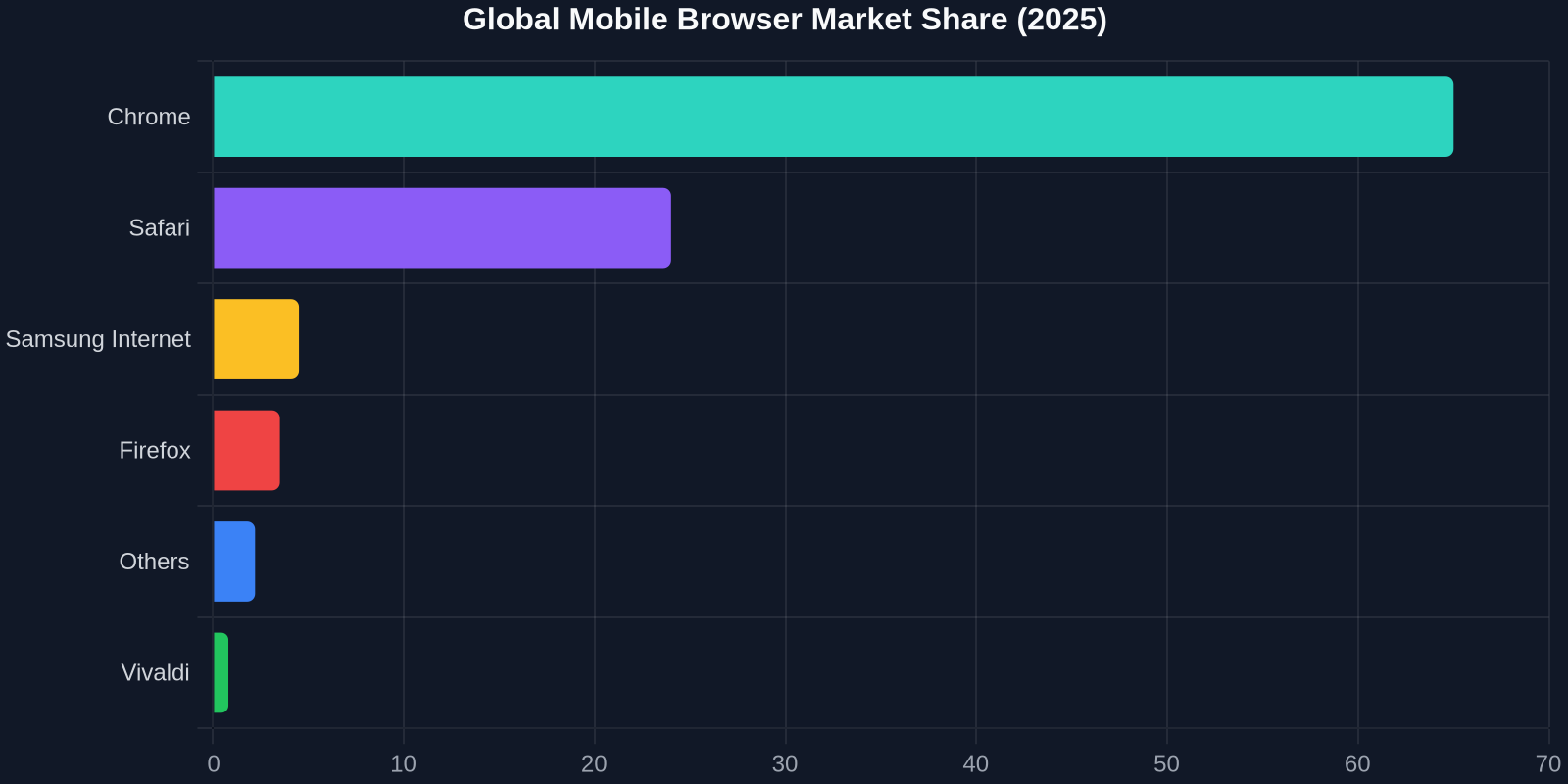
The browser extension landscape on Android has been remarkably stagnant. Chrome for Android, despite being the world's most popular mobile browser, still doesn't support extensions. Firefox on Android offers a limited set of curated add-ons. And for a long time, that was the end of the conversation.
Enter Vivaldi. The Chromium-based browser has broken the mold by bringing full Chrome Web Store extension support to Android. This means you can now install and run the same extensions you use on desktop, including DivMagic, your go-to tool for copying UI elements from any website, directly on your mobile device.
In this comprehensive guide, we'll walk through everything you need to know about running Chrome extensions on Android with Vivaldi, explore which extensions work best on mobile, and show you how this capability transforms your mobile development workflow.
The Mobile Extension Gap: Why Developers Need Desktop Tools on Android
Every frontend developer knows the rhythm: you're testing a responsive layout, switching between device viewports in DevTools, tweaking CSS values, and inspecting components. Then someone sends you a link to check on your phone, and suddenly you're stripped of every tool that makes you efficient. No CSS inspector. No color picker. No UI copying tool.
This is the mobile extension gap, the disconnect between the sophisticated tooling available on desktop browsers and the bare-bones mobile browsing experience.
The mobile web isn't just a smaller version of the desktop web, it's become the primary browsing environment. Yet the tooling gap between mobile and desktop remains stubbornly wide.
The consequences are real. Developers either extend their desktop workflow with clunky remote debugging tools, or they accept reduced productivity when they're away from their desks. The ability to run Chrome extensions on Android changes this calculus entirely.
Mobile browsing accounts for nearly 60% of global web traffic, yet development tooling for mobile browsers has lagged significantly. Chrome DevTools on Android requires a USB cable and a desktop session. Remote debugging through ADB works, but it's clunky and not suitable for quick inspection tasks. What developers need is native extension support that works on the phone itself.
The mobile extension gap isn't just about convenience, it's about access. Developers who travel, work remotely, or simply prefer mobile-first workflows have been systematically underserved by the browser ecosystem for nearly a decade.
Vivaldi Browser: The First Chromium-Based Mobile Browser with Full Extension Support
If you haven't been following Vivaldi, now is the time to start. Created by Opera co-founder Jon von Tetzchner, Vivaldi has always positioned itself as the browser for power users. Its desktop version pioneered features like tab stacking, page tiling, and deep customization options that other browsers eventually copied. Now, Vivaldi is doing the same for mobile with a feature no other Chromium-based mobile browser offers: full Chrome Web Store extension compatibility.

Here's what makes this technically significant. Vivaldi for Android is built on the Chromium engine, the same underlying technology that powers Chrome. This means it enjoys Chromium's excellent rendering performance, security patches, and modern web standards support. But where Google chose to strip extension support from Chrome for Android (a decision that's never been fully explained, though it's widely believed to be about control and resource management), Vivaldi took the opposite path.
Vivaldi's Android browser achieves Chrome extension compatibility by exposing the Chromium extension APIs on mobile, something Google has declined to do for Chrome proper. This makes Vivaldi's Android implementation the closest thing to true desktop parity in the mobile browser world.
The implications are significant. When you install a Chrome extension in Vivaldi for Android, it's not a mobile-optimized approximation. It's the actual extension from the Chrome Web Store, running on the same Chromium engine your desktop browser uses. This includes extensions that manipulate the DOM, inject scripts, or provide overlay interfaces, capabilities that fundamentally change what's possible on a mobile browser.
Step-by-Step: Installing Chrome Extensions on Android with Vivaldi
Getting Chrome extensions running on your Android device with Vivaldi is surprisingly straightforward. Here's the complete process:
1. Install and Launch Vivaldi
Download Vivaldi from the Google Play Store. It's free and doesn't require any special permissions beyond standard browser access. Once installed, launch it and complete the basic setup, choose your default search engine, set a home page, and configure privacy settings according to your preferences.
2. Navigate to the Chrome Web Store
Open Vivaldi and type chrome.google.com/webstore in the address bar. This is the same Chrome Web Store you'd use on desktop. Vivaldi's extension support is integrated with the Web Store, so you can browse, search for, and install extensions exactly as you would on your computer.
3. Search for Your Desired Extension
Use the search bar in the Web Store to find the extension you want. For example, if you're a DivMagic user, search for "DivMagic" and you'll see the extension listing. You can browse user reviews, check ratings, and read the extension description just like on desktop.
4. Install the Extension
Tap the "Add to Chrome" button. Despite the name referencing Chrome, this works with Vivaldi's Chromium engine. A confirmation dialog will appear, confirm the installation. The extension will download and install in a few seconds.
5. Manage Your Extensions
To view, enable, or disable installed extensions, open Vivaldi's main menu (the V logo), navigate to Settings, and select "Extensions." Here you'll see a list of all installed extensions with toggles for enabling or disabling each one. You can also access extension options and settings from this panel.
Not all extensions render perfectly on mobile due to viewport constraints. Enable Vivaldi's "Desktop Browser Mode" or "Desktop View" before using extension interfaces for the best experience. Many extensions designed for desktop UIs become much more usable when the browser reports a desktop viewport.
Top Chrome Extensions Worth Running on Android
<Vivaldi's extension support opens up hundreds of possibilities, but some extensions are more valuable on mobile than others. Here's a curated list of extension categories that genuinely improve mobile browsing for developers and designers.

Productivity and Note-Taking
Extensions like Todoist, Evernote Web Clipper, and Notion Web Clipper work surprisingly well in Vivaldi for Android. You can clip articles, save links, and manage tasks without leaving your mobile browser. The key benefit is staying within a single browsing session instead of juggling multiple apps.
Developer Tools and UI Inspection
This is where Vivaldi's extension support truly shines for frontend developers. Extensions that inspect CSS, analyze page structure, or capture UI elements become available directly on your phone. DivMagic, for example, lets you copy UI elements from any website you're inspecting, a capability that previously required sitting at a desktop computer. For developers who need to capture design references while browsing on their phones, this is transformative.
Password Management
Password managers like Bitwarden, LastPass, and 1Password offer browser extensions that integrate with their mobile apps. Running these extensions in Vivaldi means autofill works more consistently across sites, which can be a genuine pain point with native Android password integration.
Ad Blocking and Privacy
uBlock Origin and AdGuard have long been desktop staples. On Android, most users settle for browser-level ad blocking or separate VPN-based blockers. Vivaldi brings the full uBlock Origin experience to Android, giving you granular control over what loads on each page.
Color Pickers and Accessibility Tools
For designers, color picker extensions like ColorZilla work in Vivaldi on Android, letting you identify specific colors from any website you're reviewing on your phone. Accessibility checkers can also run directly on mobile, giving you real-world testing capabilities.
Comparing Browser Options for Extension Support on Android
To understand Vivaldi's significance, it helps to compare the mobile browser landscape:
Kiwi Browser also supports Chrome extensions on Android and was one of the first to do so. However, Vivaldi has a larger development team, more frequent updates, and a longer track record of maintaining extension compatibility. For developers evaluating long-term reliability, Vivaldi is the safer bet.
Performance and UX Considerations
Running Chrome extensions on a mobile browser isn't without challenges. Mobile devices have constrained resources compared to desktops, less RAM, slower CPUs, and tighter battery budgets. Here's what you need to know about performance.

Extensions consume memory, CPU cycles, and battery. A single lightweight extension like DivMagic or a password manager typically has negligible impact, no more than a few milliseconds of additional load time and a minor increase in memory usage. However, stacking multiple heavy extensions (ad blockers, script blockers, page analyzers) multiplies this overhead.
Vivaldi handles this gracefully by lazy-loading extensions. An extension only runs when its trigger conditions are met. A password manager only activates when it detects a login form. An ad blocker only processes page content when the page loads. This intelligent resource management is crucial for maintaining acceptable mobile performance.
Known Limitations
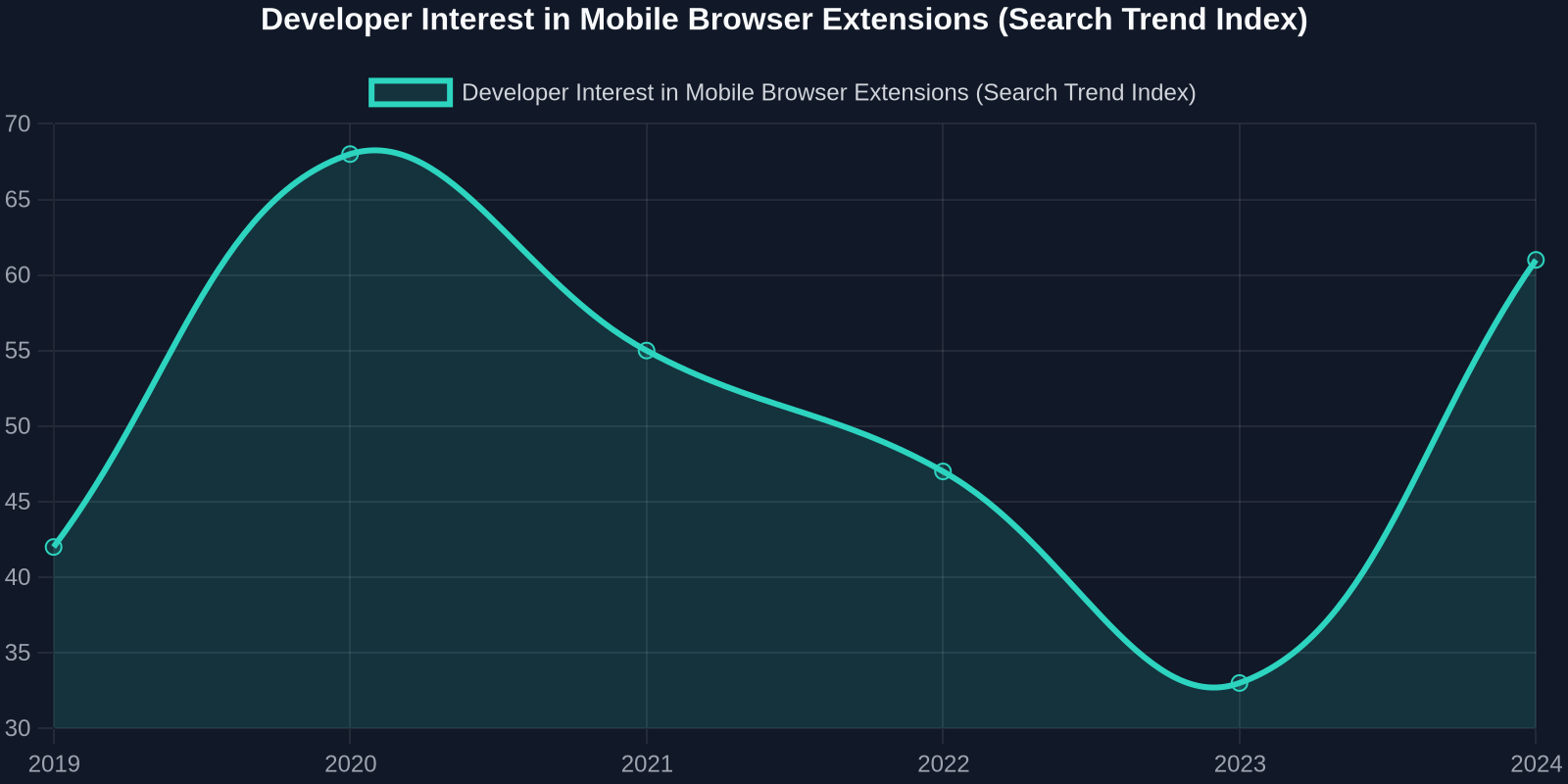
Some extensions simply don't work on mobile. Extensions that rely on keyboard shortcuts, right-click context menus, or multi-window workflows may be partially or entirely non-functional. Extensions that require desktop-specific APIs or screen dimensions also fall short. These limitations reflect the reality of mobile viewport constraints rather than any technical failure in Vivaldi's implementation.
How DivMagic Fits Into Your Mobile UI Workflow
If you're a DivMagic user, Vivaldi's Android support unlocks a new dimension of your workflow. Here's a practical scenario to illustrate.
Imagine you're at a coffee shop, reviewing competitor websites on your phone. You spot a particular pricing table layout that would work perfectly for a client project. Previously, you'd have to remember the URL, email it to yourself, and wait until you're at your desk to copy and analyze the UI.
With Vivaldi on Android, you can install the DivMagic extension, navigate to the site, and copy the UI element immediately. The copied component is saved to your DivMagic workspace, ready for you to reference or integrate into your design when you're back at your desk.
This isn't just convenience, it's about capturing inspiration at the moment of discovery.
The most valuable mobile extension use case for developers is rapid reference capture. The moment you see something useful on the mobile web, you can act on it immediately, no context switching, no emailing links to yourself, no lost inspiration.
For teams working in agile environments where design and development overlap, this capability reduces the friction between mobile browsing and desktop execution.
The Future of Mobile Browser Extensions
Vivaldi's mobile extension support isn't just a feature, it's a statement about where the web is heading. The boundaries between desktop and mobile browsing are blurring. As mobile devices grow more powerful and the web platform becomes more capable, the distinction between "desktop extension" and "mobile extension" will become increasingly meaningless.
Several industry trends point in this direction. Progressive Web Apps (PWAs) are already bringing desktop-grade capabilities to mobile devices. WebAssembly enables near-native performance in the browser. And now, browsers like Vivaldi are proving that the full extension ecosystem can work on mobile.
The pressure is building on browser vendors to follow suit. Developers and power users have demonstrated their willingness to switch browsers for better tooling. Vivaldi's steady growth, particularly among technical users, is a market signal that extension support matters.
Desktop-grade tooling on mobile isn't a luxury feature anymore, it's becoming the expected baseline. The browser that wins the next five years will be the one that treats mobile as a first-class platform for power users.
For now, Vivaldi stands alone in offering full Chrome extension compatibility on Android with the polish and reliability that developers need.
Conclusion: Closing the Mobile Tooling Gap
The mobile extension gap has persisted for far too long. For developers, designers, and technical power users, the inability to use Chrome extensions on Android has meant accepting a permanently diminished mobile browsing experience. Vivaldi's support for Chrome Web Store extensions represents the first credible solution to this problem.
Whether you're a frontend developer who needs to inspect and copy UIs on the go, a designer who wants to capture color references during mobile browsing, or a power user who simply won't accept an ad-laden mobile web, Vivaldi on Android offers a way forward.
The setup is straightforward: install Vivaldi, visit the Chrome Web Store, and install your favorite extensions. The performance overhead is manageable. The limitations are understood. And the workflow transformation is real.
If you're ready to close the mobile tooling gap for your own development workflow, start by installing Vivaldi on your Android device and adding DivMagic to your extension lineup. The moment you copy your first UI element from a mobile browser, you'll understand why this capability matters.