
AI Convert Figma Designs to Code: The Free Cursor-Free Plugin for React, HTML, CSS & JavaScript
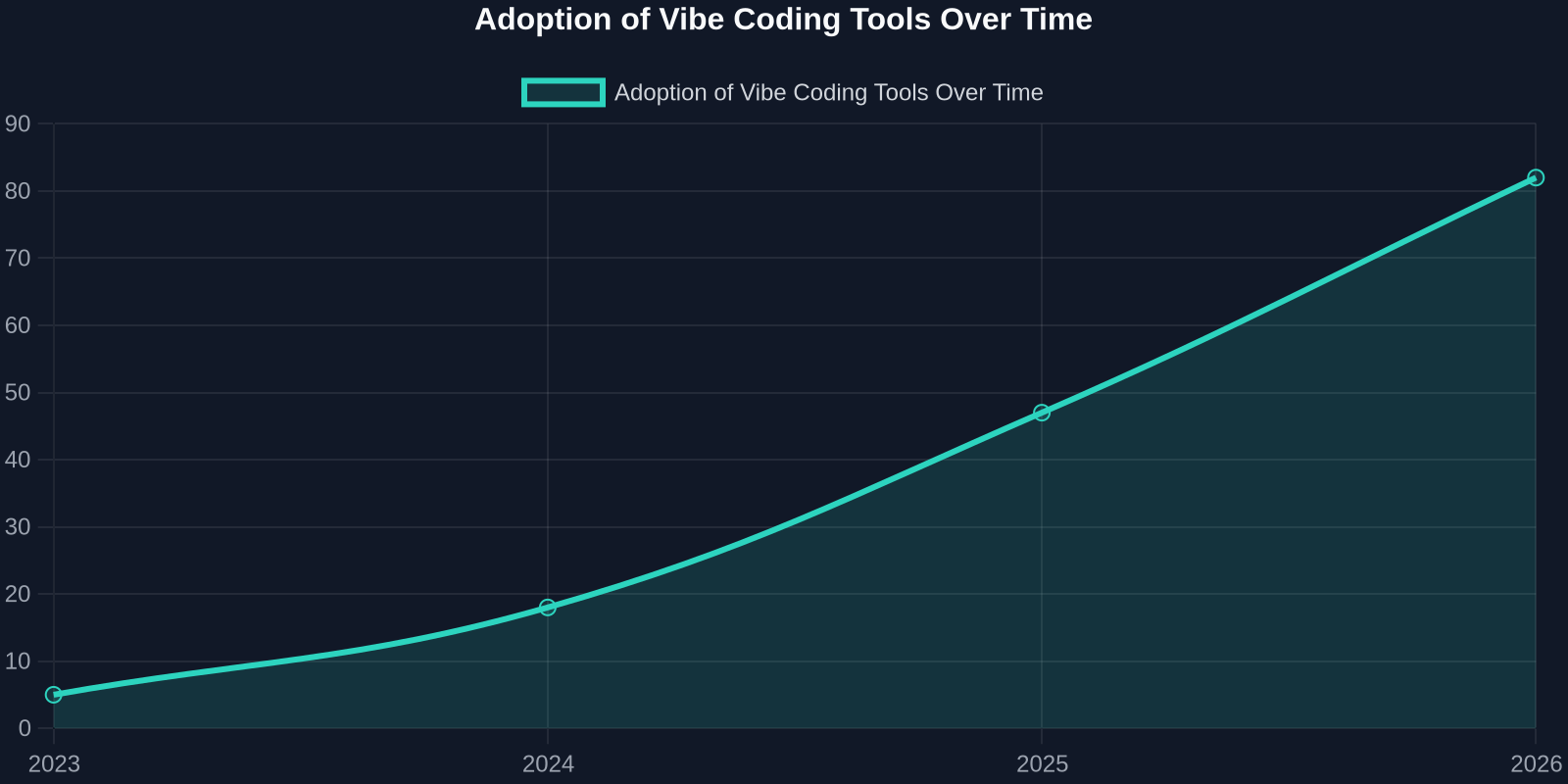
Vibe coding is rewriting frontend development. Andrej Karpathy coined the term in February 2025 to describe prompting AI tools to generate code you ship without reading every line. Since then, Cursor has become the poster child for that workflow, but a new free plugin is removing Cursor from the design-to-code equation entirely.
A recent article on TheServerSide highlighted a free AI plugin that converts Figma designs directly into React, HTML, JavaScript, and CSS. It works inside Figma, requires no separate IDE, and generates framework-aware code from your design nodes. For teams that want design-to-code speed without locking into a paid AI editor, this changes the economics of frontend work.
In this post, you will learn how the plugin works, what it generates, where it excels, and where human review is still non-negotiable. We will also compare it against manual conversion, Cursor-based workflows, and DivMagic's browser extension for copying real UI from live websites.
Why AI-Powered Figma-to-Code Matters Now
Design handoff has always been a bottleneck. Designers produce pixel-perfect Figma files, and developers manually translate those into components, styles, and interactions. AI is collapsing that gap.
The old workflow looks like this: export assets, read design specs, write HTML/CSS, adjust spacing, refactor into React components, and test responsive behavior. The new workflow: select a Figma frame, click convert, review the output, and refine.
But speed is not the only driver. The cost of context switching between design and code is enormous. With AI design-to-code plugins, designers can validate ideas in the browser without waiting for a developer. Developers can start with a functional baseline instead of a blank editor.
What the Free Cursor-Free Plugin Actually Does
The plugin described in TheServerSide's coverage works directly inside Figma. You select a frame or component, choose a target framework (React, plain HTML, or JavaScript), and the plugin generates code that mirrors the visual design. Unlike Cursor, it does not require a separate code editor, a GitHub Copilot subscription, or a local Node.js environment.

Key capabilities include:
- Framework-aware output: Generates React functional components with hooks, JSX, and CSS modules, or plain HTML/CSS/JS for static projects.
- Token mapping: Converts Figma color styles, text styles, and spacing into CSS variables or utility classes.
- Responsive hints: Detects auto-layout and suggests flex or grid rules.
- Asset handling: Exports images and SVGs as separate files or inline data URIs.
- No vendor lock-in: The plugin is free and open, meaning you can inspect or modify the conversion logic.
One notable example from the ServerSide article is a small app built with Cursor that reportedly brings in $87,000 a month from sponsors. The free Figma plugin does not promise that revenue, but it removes the IDE cost and subscription friction from the early stages of UI work.
How the Conversion Engine Works Under the Hood
The plugin's conversion engine is not magic. It relies on a combination of Figma's REST API, design token extraction, and heuristic layout mapping.
Here is a simplified breakdown:
- Design tree traversal: The plugin reads the selected node tree, frames, groups, text, vectors, and auto-layout constraints.
- Token extraction: It identifies repeated colors, fonts, and spacing values, then generates a
tokens.cssortheme.jsfile. - Layout inference: Auto-layout properties (direction, gap, padding, alignment) become flexbox or grid CSS. Absolute positioning is used only when necessary.
- Component synthesis: Repeated groups are converted into reusable React components with prop-based variations.
- Code emission: The final output is formatted, lint-friendly, and includes comments that map back to Figma node IDs.
This approach is fundamentally different from screenshot-to-code tools. Those generate image-based markup that is fragile and hard to maintain. Figma-to-code plugins work with structured design data, which means the output is closer to what a human developer would write.
Step-by-Step: Convert a Figma Screen to React in 5 Steps
Let's walk through a realistic workflow using the free plugin.

Step 1: Prepare Your Figma File
Organize your design with frames, auto-layout, and named styles. The plugin works best when your design system is consistent. Avoid flattening layers or using rasterized text.
Step 2: Install and Run the Plugin
Search for the plugin in Figma's community, install it, and select the top-level frame you want to convert.
Step 3: Choose Your Output Format
Pick React, HTML/CSS, or JavaScript. For component-heavy interfaces, React is the default. For marketing pages, HTML/CSS may be enough.
Step 4: Generate and Review
Click Convert. The plugin generates code in a side panel. Review the output for:
- Hard-coded values instead of tokens
- Missing hover states or interactions
- Unnecessary wrapper divs
- Accessibility gaps (missing alt text, button labels)
Here is an example of a generated React card component:
import React from 'react';
import './Card.css';

const Card = ({ title, description, image }) => {
  return (
    <div className='card'>

      <div className='card__body'>
        <h3 className='card__title'>{title}</h3>
        <p className='card__description'>{description}</p>
      </div>
    </div>
  );
};

export default Card;
And the corresponding CSS with design tokens:
:root {
  --color-primary: #2563eb;
  --space-md: 16px;
  --radius-card: 12px;
}

.card {
  display: flex;
  flex-direction: column;
  gap: var(--space-md);
  border-radius: var(--radius-card);
  padding: var(--space-md);
  background: #fff;
  box-shadow: 0 4px 12px rgba(0,0,0,0.08);
}
Step 5: Refine and Integrate
Copy the code into your project. Replace class names with your preferred convention (BEM, CSS modules, Tailwind). Wire up state, event handlers, and API calls.
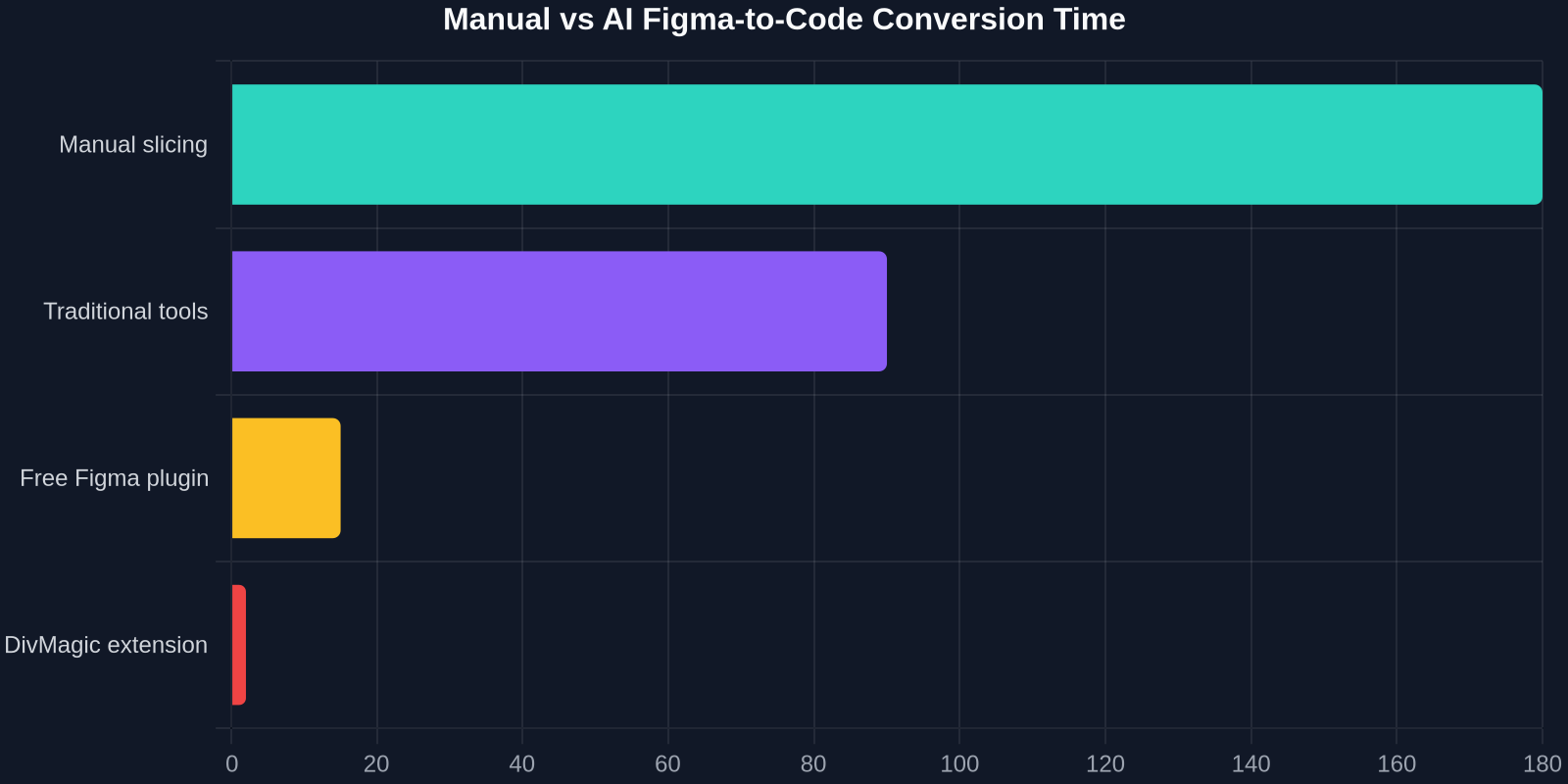
| Approach | Time per Screen | Code Quality | Best For |
|---|---|---|---|
| Manual slicing | 2–4 hours | High if done carefully | Complex, bespoke UI |
| Cursor + Copilot | 30–60 minutes | Variable | Full-stack IDE workflows |
| Free Figma-to-Code Plugin | 5–15 minutes | Good baseline, needs review | Rapid prototyping, handoff |
| DivMagic Browser Extension | 1–2 minutes | Pixel-accurate for live sites | Copying existing UI from production websites |
Code Quality vs. Speed: The Technical Debt Reality Check
The biggest criticism of AI code generation, including vibe coding, is that speed without understanding creates technical debt nobody can fix later. That is not hypothetical. The free Figma plugin produces clean, token-aware code, but it still makes assumptions.
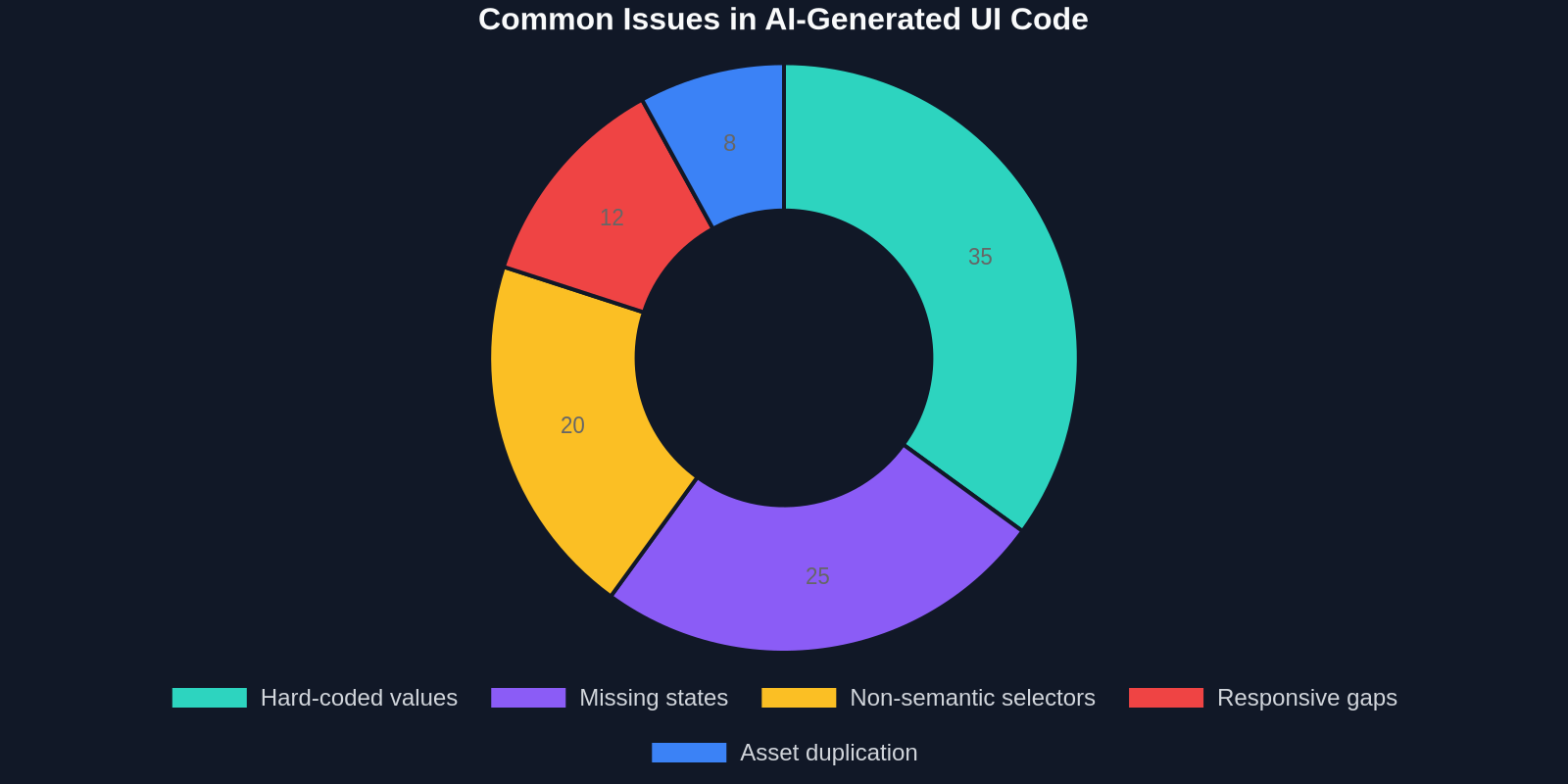
Common issues include:
- Overly specific selectors: The plugin may generate
.frame-15 .text-3instead of semantic class names. - Missing states: Hover, focus, active, and loading states require manual addition.
- Hard-coded breakpoints: A frame may be optimized for desktop, but mobile requires a separate conversion or manual adjustment.
- Asset duplication: The same SVG may be inlined multiple times if the plugin does not deduplicate.
That is why the best workflow is AI generates, human reviews. Treat the plugin's output as an 80 percent solution. Use it to skip the boring parts, layout scaffolding, token extraction, repetitive components, and spend your time on quality, accessibility, and performance.
When You Still Need a Human in the Loop
AI design-to-code tools are impressive, but they are not a replacement for frontend engineering judgment. Here are five scenarios where manual intervention is essential:
- Complex animations: Figma's smart animate may not map to CSS keyframes or JavaScript libraries like Framer Motion.
- Data-driven components: Lists, tables, and charts require state management and API integration that the plugin cannot infer.
- Accessibility: Semantic HTML, ARIA attributes, focus management, and keyboard navigation are rarely generated correctly.
- Performance optimization: Code splitting, image lazy loading, and critical CSS extraction need project-specific tuning.
- Design system integration: If your team uses a custom component library, the generated code must be adapted to match existing APIs and props.
Speed without understanding creates technical debt nobody can fix later.
The key is to use AI tools as accelerators, not autopilots. This is the difference between vibe coding responsibly and vibe coding recklessly.
Best Practices for AI-Generated UI Code
To get the most out of the free Figma-to-Code plugin, follow these guidelines:
- Start with a design system: Consistent color styles, text styles, and spacing tokens lead to better conversion.
- Convert in small chunks: A single screen is easier to review than an entire page. Break complex designs into logical components.
- Use a code formatter: Run Prettier or ESLint immediately after conversion to catch syntax issues and normalize style.
- Replace generated class names: Map the plugin's node-based class names to your project's naming convention.
- Add tests: Visual regression tests with Playwright or Storybook snapshots can catch layout drift.
- Document the conversion point: Note which files came from Figma and which have been manually edited.
Beyond Figma: Copying UI from Live Websites
While Figma-to-code plugins are excellent for designs you have created, what about copying a UI element from a website you admire? That is where browser extensions like DivMagic come in.
DivMagic lets you select any UI element on a live website and copy it as clean HTML, CSS, or React code, without writing a single selector manually. It is the live-web equivalent of a Figma-to-code plugin: instant, visual, and ready to paste into your project.
The combination of tools is powerful:
- Figma plugin for designs your team creates.
- DivMagic for inspiration from existing websites.
- Cursor or similar AI editor for full-stack logic and refactoring.
Each tool removes a different bottleneck. The free Figma plugin removes the design handoff step. DivMagic removes the reverse-engineering step. Together, they shrink the gap between idea and shipped UI.
Comparison: Which Tool Should You Use?
Here is a quick decision guide:
- Designing a new interface from scratch? Use Figma + the free AI conversion plugin.
- Recreating a specific component from a website? Use DivMagic.
- Building complex stateful logic? Use Cursor or an AI-assisted IDE.
- Need pixel-perfect static HTML? The Figma plugin or DivMagic both work, but DivMagic is faster for live sites.
| Need | Best Tool | Reason |
|---|---|---|
| Convert a Figma design to React | Free Cursor-Free Plugin | Structured design data yields cleaner components |
| Copy a button or card from a live site | DivMagic | No manual inspection needed |
| Generate full-stack app logic | Cursor or Claude Code | IDE-native AI assist persists context |
| Quick static landing page | Figma plugin or HTML export | Minimal setup, fast output |
Conclusion: The Future of Frontend Is AI-Assisted, Not AI-Automated
The free Cursor-free Figma-to-Code plugin is a significant step toward a faster, more collaborative design-to-development workflow. It removes friction, reduces repetitive work, and gives developers a solid starting point.
But the real lesson from vibe coding's rise is not about speed. It is about judgment. AI can generate code, but it cannot own the outcome. The developers who thrive will be those who use AI to amplify their expertise, not replace it.
Figma-to-code isn't just about generating markup, it's about creating maintainable, token-driven components.
If you are ready to accelerate your UI workflow, start by testing the free Figma plugin on a small project. Then, when you need to copy a live UI, open DivMagic and see how fast production code can be. The tools are ready. The question is whether your review process is.